How to scan a crowded fridge or pantry with your iPhone
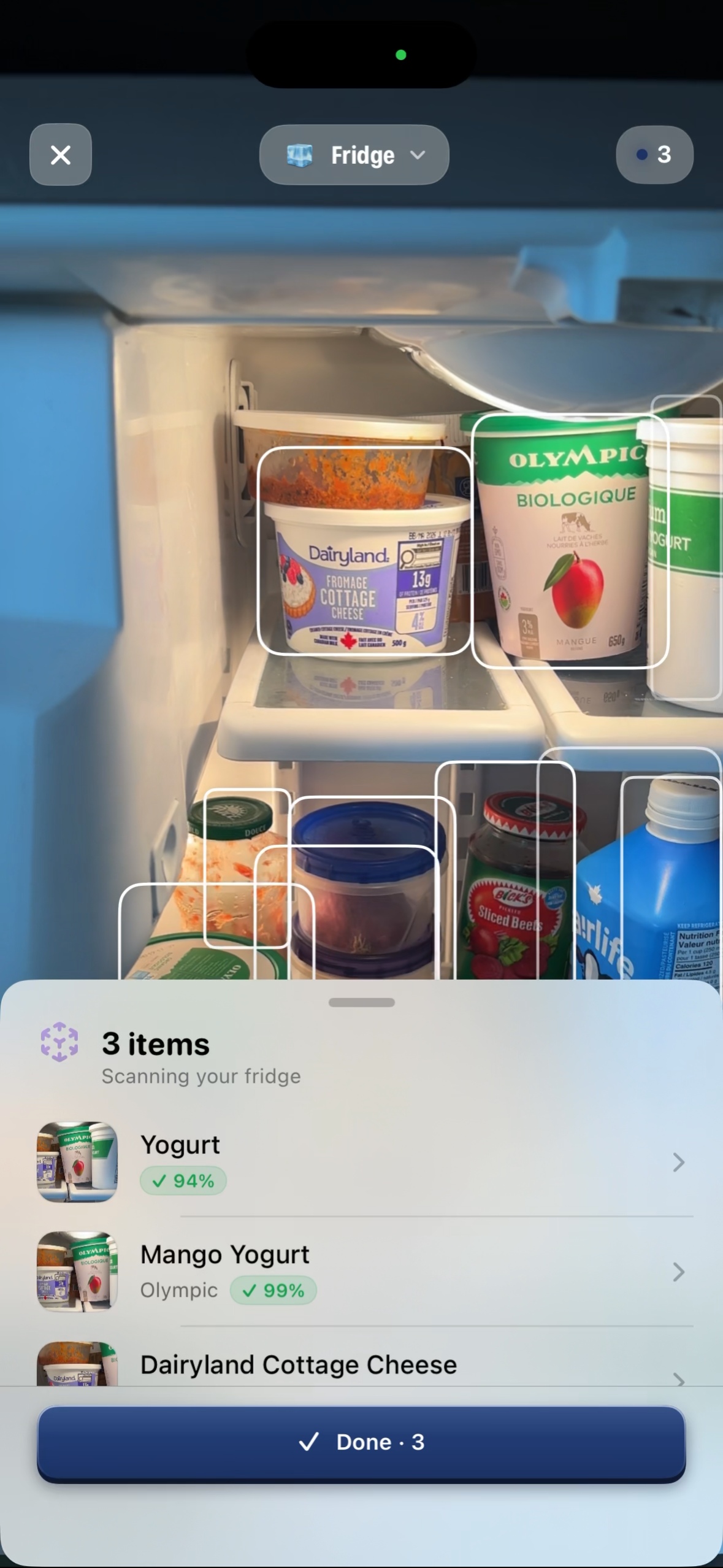
Start with one section you can see clearly. In ScanMyPantry, choose your fridge or pantry and aim the live camera at that section. Item outlines show what the app is picking up. Review the suggestions to decide what belongs in your inventory.
What to do when a scan misses an item
If there’s no outline, bring the item into a clear part of the camera view. Try it on its own with the front facing you. If there’s an outline but the suggested name is wrong, check the label and correct the entry before saving. You can add food by hand if it still doesn’t show up.
When only the front row is visible
Scan the front row, then move one or two items so you can see the back. Check the suggestions before saving the second group. If the same carton appears in both passes, keep one entry for it. If two separate cartons look identical, check the physical count and record the quantity you actually have.
When two packages look alike
Turn the front label toward the camera and give the item room in the frame. Check the suggested name against the label, especially for different varieties in similar packaging. A barcode is optional for starting a scan.
When labels or contents are hidden
For opaque containers and decanted staples, use the name you wrote on the container. For reflective packaging, adjust the angle so glare covers less of the label. Correct or skip a suggestion if you cannot confirm it.
Before saving
- Check the names of the foods you want to keep.
- Correct quantities and remove duplicates.
- Confirm the fridge, pantry, or freezer space.
- Save selected items and reopen the list to confirm the entries.
Watch live item outlines on an iPhone · Learn the grocery scanning workflow · Browse kitchen guides